
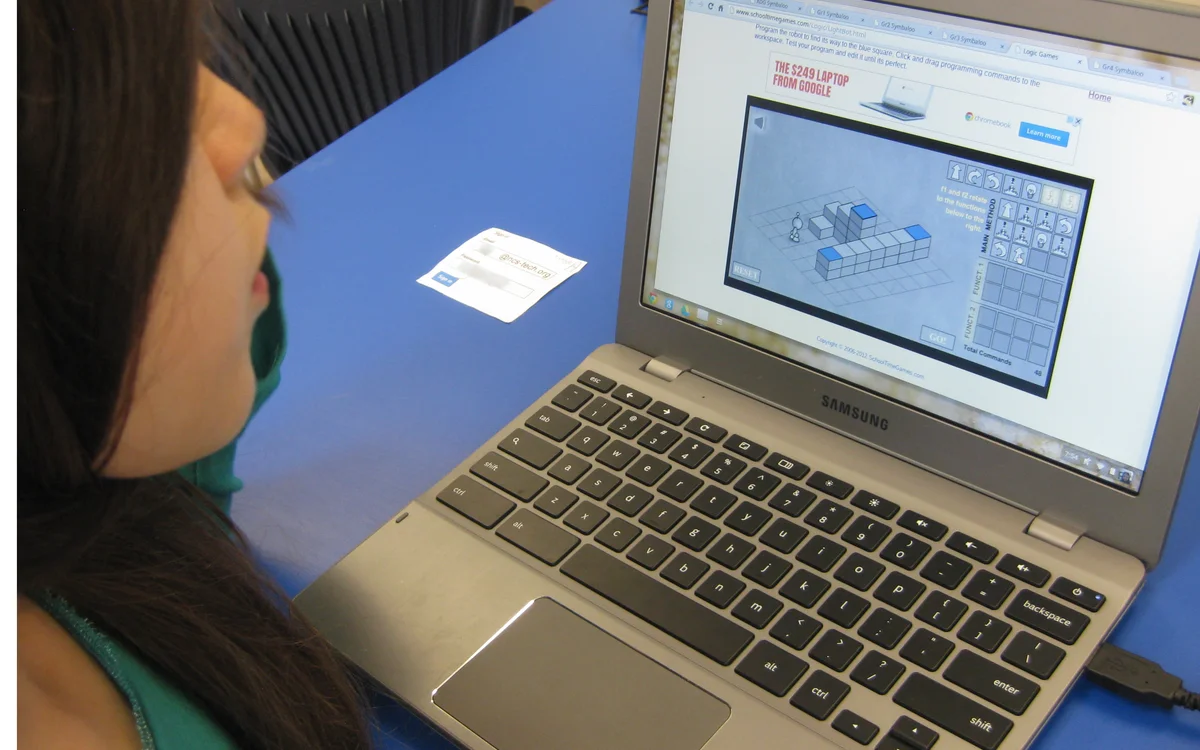
What a Chromebook Actually Is
A Chromebook runs Chrome OS, a lightweight operating system built almost entirely around the Chrome browser rather than traditional installed programs. Instead of opening a Word application, a student opens a tab and uses Google Docs. Instead of installing Photoshop, there's a browser-based editor. This is why Chromebooks are inexpensive and rarely slow down over time - there's very little heavy software running in the background to begin with.
The tradeoff is that software requiring a real installation - certain specialized school programs, some PC-only games, a handful of engineering or design tools - simply won't run. Most schoolwork never touches that category, but it's worth knowing before assuming a Chromebook can do everything a full laptop can.
Storage Works Differently - and That Trips People Up
A lot of Chromebooks ship with surprisingly little onboard storage, sometimes as little as 32 or 64 gigabytes, because the device is designed to lean on cloud storage instead. Files are expected to live in Google Drive, not in a local folder, which means a student who saves everything "to the Chromebook" the way they would on a home PC can run out of space fast, or lose work entirely if the device is wiped and reissued, which school IT departments do more often than people expect.
The fix is a habit, not a setting: treat Google Drive as the actual hard drive. Anything that matters - essays, project files, downloaded worksheets - belongs there, not in the Downloads folder, which many district Chromebook policies clear automatically at the end of each school year.
Working Offline Without Losing Everything
Chromebooks are built around being online, which becomes a real problem the moment home Wi-Fi goes out the night before an assignment is due. The fix is turning on offline access ahead of time rather than discovering the gap mid-assignment. In Google Drive's settings, offline access can be enabled so that Docs, Sheets and Slides stay editable without a connection, syncing automatically the next time the device reconnects.
It's worth testing this once, deliberately, rather than assuming it's already on. Turn off Wi-Fi, open a document, confirm it's editable, then turn Wi-Fi back on and watch it sync. That five-minute test prevents a much worse five-minute panic later.
Keyboard Shortcuts Worth Actually Learning
| Shortcut | What It Does |
|---|---|
| Ctrl + Shift + L | Open a new tab in a specific window, or lock the screen depending on context |
| Alt + Shift + M | Open the Files app |
| Ctrl + Alt + / | Show the full keyboard shortcut list |
| Ctrl + Shift + Q (twice) | Sign out of the Chromebook |
| Overview key (square-with-lines) | Show all open windows at once |
None of these are required to use a Chromebook, but the Files app shortcut especially saves time for anyone who regularly needs to find a downloaded PDF or an image for a project without hunting through menus.
Extensions Districts Actually Allow
Most school districts lock down the Chrome Web Store to a short approved list, which can feel restrictive compared to a personal laptop. Within that list, a handful of extensions genuinely help: a read-aloud tool for dense reading assignments, a citation generator for research papers, and a grammar checker that catches more than the browser's built-in spell check. Whatever is available, it's worth actually opening the extensions menu once per semester, since districts update the approved list more often than students check it.
Battery Habits That Keep a School Day Going
Most education Chromebooks are rated for a full school day on a single charge, but that number assumes reasonable brightness and not twenty tabs running video at once. A few habits stretch it further: lowering screen brightness a notch below maximum, closing tabs that aren't actively in use rather than letting dozens pile up, and charging during the exact window a student is least likely to need the device - usually first thing in the morning before leaving, not during a free period when it might actually be needed.
Keeping a charger in a backpack as a backup, rather than only at a desk, solves the single most common Chromebook emergency: a device that dies with two class periods still left in the day.
Printing, Scanning and the Occasional Paper Form
Not every assignment stays digital. Chromebooks handle printing through Google Cloud Print's successor - most modern printers connect directly over the same Wi-Fi network without extra software, though older printers sometimes need a workaround through a Windows or Mac computer on the same network to register first. For scanning a signed permission slip or a handwritten worksheet, the Camera app or a scanning extension usually produces a clean enough PDF for upload without needing a dedicated scanner at home.
When Something Goes Wrong
Chromebooks are refreshingly simple to reset compared to a full computer. A "Powerwash," found in Settings under Advanced, restores the device to its original state - useful when it's running strangely, but it also erases anything saved locally rather than in Drive, which is one more reason cloud storage habits matter from day one. For anything beyond a reset, most schools have a help desk or IT contact built specifically around these devices, since they're managing hundreds of identical ones already.
Frequently Asked Questions
- Can a Chromebook run Microsoft Word or Excel? Through a browser-based version via Office.com, yes, though the full desktop apps won't install. Google Docs and Sheets handle most of the same work and are usually the default at schools that issue Chromebooks.
- Why does my Chromebook feel slow with many tabs open? Each tab uses its own slice of memory, and entry-level Chromebooks often ship with only 4GB of RAM. Closing unused tabs, rather than just minimizing them, frees that memory back up immediately.
- Can I install Android apps on a school Chromebook? Technically many models support it, but school-managed devices usually have the Play Store disabled by district policy, so this isn't something a student can turn on themselves.
- What happens if a Chromebook is lost or damaged? Most districts issue a replacement quickly since the devices are inexpensive and centrally managed, but there's often a small repair or replacement fee depending on the school's device policy, so it's worth checking that policy at the start of the year rather than after an accident.
The Bottom Line
A Chromebook isn't a limited version of a real computer - it's a different kind of computer, built around the browser and the cloud instead of installed software and local files. Once that shift clicks, most of what feels restrictive about it turns out to be a non-issue, and the parts that are genuinely different - offline Drive access, cloud-first storage, a locked-down extension store - are each solved with a five-minute habit rather than a workaround. Most of the frustration students run into in the first week comes from expecting it to behave like a home laptop, not from any real flaw in the device itself.